How To Enable Console CS2 Commands And Setup Guide
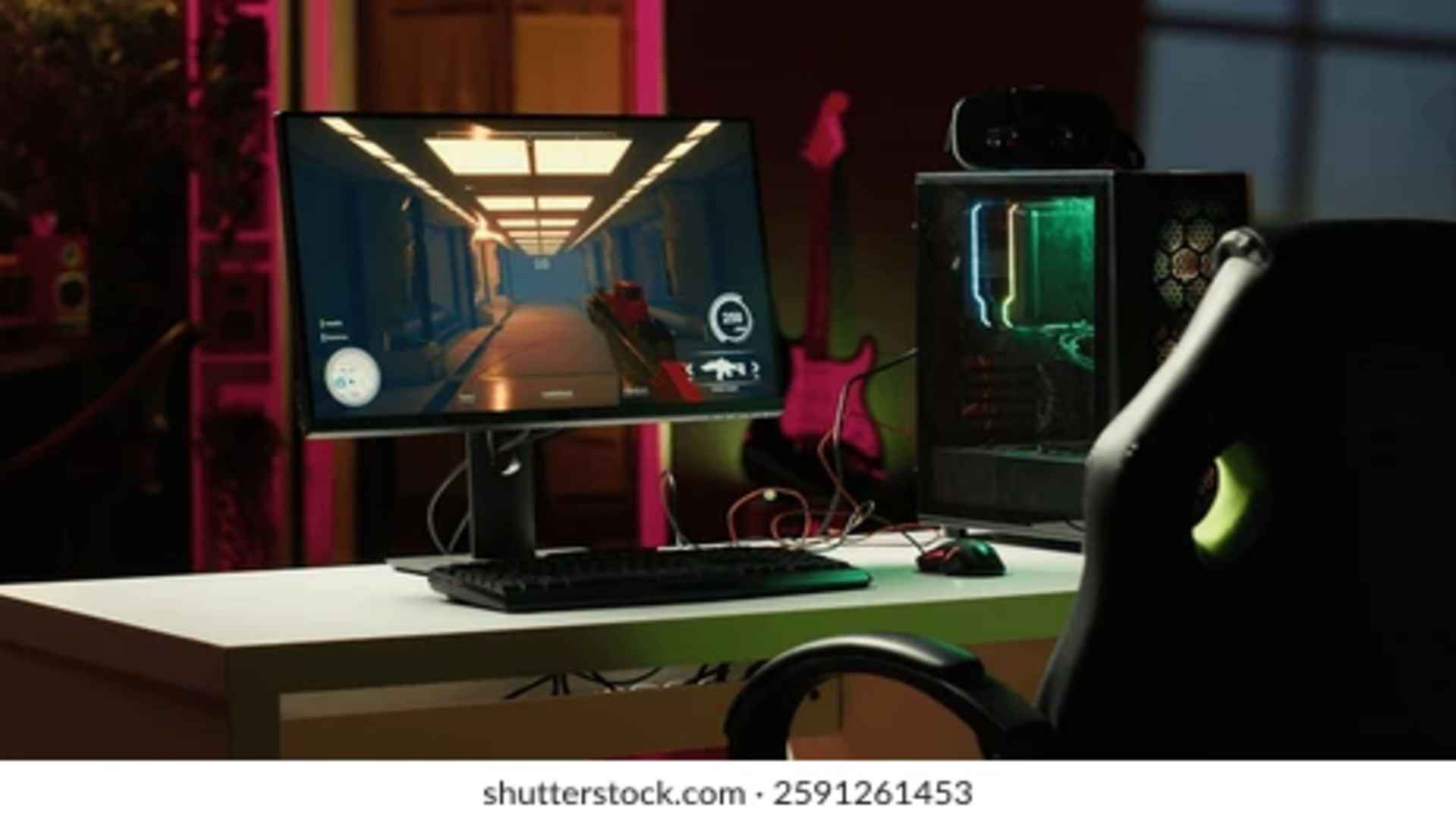
Counter-Strike 2 relies heavily on precise settings and customized controls to give players the best possible competitive edge. Accessing the developer console is the first step toward unlocking deeper game customization, performance monitoring, and tailored keybindings. By enabling this built-in tool, players can directly communicate with the engine to optimize their overall gaming setup.
Enabling the Developer Console in Settings
To start using commands in CS2, you must first toggle the developer console option inside the game's main menu. Navigate to the game settings tab and locate the Developer Console option under the main game category. Switching this option to Yes allows you to open the command interface instantly during matches or while navigating menus.
By default, the shortcut key to bring up the overlay is the tilde key located just below the Escape button. You can easily rebind this key in the keyboard settings if another key suit your setup better. Once assigned, pressing the designated button will display a text window ready for command inputs.
Essential Commands for Performance and UI
Monitoring your system performance helps maintain smooth gameplay during intense firefights. Commands such as cl_showfps 1 display real-time frame rates directly on your screen to help assess hardware stability. Utilizing these diagnostic tools ensures your graphics settings remain optimized for fluid movement and low input latency.
Adjusting audio and visual elements via console commands can also improve overall map awareness and clarity. Settings related to radar scaling, crosshair adjustments, and viewmodel positions can be tweaked in real time without restarting your match. Fine-tuning these parameters helps create a clean interface tailored specifically to your playstyle.
Setting Up Useful Keybindings and Configs
Custom keybindings allow players to execute complex actions or select specific grenades with a single keypress. Using the bind command in the console lets you assign dedicated buttons to individual equipment items for faster deployment. This eliminates the need to cycle through your inventory using the scroll wheel during critical combat moments.
For long-term preference storage, creating an autoexec configuration file ensures your custom settings load automatically every time the game launches. Placing your favorite console commands inside this text file guarantees consistent performance without retyping entries manually. Taking the time to establish a personalized config file streamlines your setup for every gaming session.
Troubleshooting Common Console Issues
If the console fails to open after pressing the shortcut key, verify that the developer console option remains enabled in settings. Sometimes major game updates reset input settings, requiring players to re-enable the feature manually. Ensuring your keyboard layout matches the expected input language can also prevent keybinding discrepancies.
When commands do not function as intended, check for typos or incorrect parameter syntax within the input field. Certain server settings or official matchmaking modes restrict specific cheat commands to maintain fair play. Testing new configurations on private practice servers ensures all bindings function correctly before hopping into competitive matches.